Imagine searching for the perfect running shoes and finding all sizes and colors in one listing — no endless scrolling required. Amazon’s variational listings offer this streamlined experience, making shopping easier for customers and boosting visibility and conversions for sellers.
With M2E Pro, you can sell multi-variational products from your Adobe Commerce (formerly Magento) catalog as listing variations on Amazon. We’ll guide you through the process, sharing practical tips to make it as smooth as possible.
Why create Amazon product variations
Before diving into how to list variational products on Amazon with M2E Pro, let’s explore the key benefits of using variation listings:
- Prevent self-competition among listings
When similar products (like different sizes or colors) have separate listings, they compete against each other in search results. By using variations, all options are grouped under a single ASIN, consolidating traffic and conversions into one listing. This not only improves visibility but also strengthens your product’s ranking and sales potential.
- Simplify shopping to encourage more purchases
One of the biggest advantages of listing variations is that customers can view and choose from multiple options—such as size, color, or style—within a single listing. This eliminates the need to sift through multiple search results, making the shopping experience more convenient. As a result, variation listings can significantly improve conversion rates and contribute to increased overall revenue.
- Help new products gain visibility faster
By combining lower-performing or newly added products with well-established listings, you can enhance visibility and increase sales potential. For instance, if you introduce a new color of sneakers, instead of creating a separate Amazon listing from scratch, you can add it as a variation under an existing, high-performing sneakers offer. This strategy allows new products to benefit from the traffic and engagement of successful listings.
- Drive more sales with an all-in-one product listing
Amazon prioritizes products with strong sales histories and positive reviews in search rankings. When a variational listing structure is used, every sale contributes to the overall performance metrics of the variations. This means that newer or lower-performing variations benefit from the accumulated sales data of the entire listing, improving visibility and ranking in organic search results.
- Optimize inventory control
Managing stock becomes more efficient when all product variations are grouped under a single listing. Instead of tracking multiple separate listings, you can easily monitor available sizes, colors, or styles within one centralized view. This approach helps maintain optimal inventory levels, provide timely restocking, and avoid overselling.
How Amazon variational listings work
Amazon variation listings are structured using a Parent-Child relationship, which differs slightly from marketplaces like eBay. This structure consists of three key elements:

1. Parent Listing
Acts as a container for related variations but is not a buyable product itself. Instead, it serves as an organizational tool in Amazon’s catalog. For example, if a T-shirt is available in multiple colors and sizes, all variations are grouped under a single Parent ASIN.
2. Child ASINs
Child ASINs represent the actual products available for purchase. Multiple Сhild products can be linked to a single parent ASIN, each differing in a specific way—such as color, size, shape, or flavor. These distinctions help customers choose the exact variation they need.
3. Variation Theme
Determines how Child ASINs differ within a listing. It varies by category; fashion products often use size and color, while other categories may include flavor, material, or style as differentiating factors.
Steps to create listings with variations on Amazon via M2E Pro
M2E Pro makes it simple for Adobe Commerce (Magento) sellers to create Amazon product variations. Follow these steps to get started.
Step 1. Install and set up M2E Pro
Before you start listing products, ensure M2E Pro is installed and ready to go on your Adobe Commerce store. Once installed, the extension will guide you through three essential setup steps:
- Registering an M2E Pro account
- Connecting your Amazon seller account
- Configuring general settings
This process is quick and straightforward. If needed, you can refer to the onboarding guide or reach out to customer support for assistance.
Step 2. Create an M2E Pro Listing for Amazon variations
To sell on Amazon, organize your products into a Listing group in M2E Pro. This ensures your Adobe Commerce items follow unified selling and shipping rules, while allowing you to structure listings based on attributes like Magento store view, category, brand, or product type.
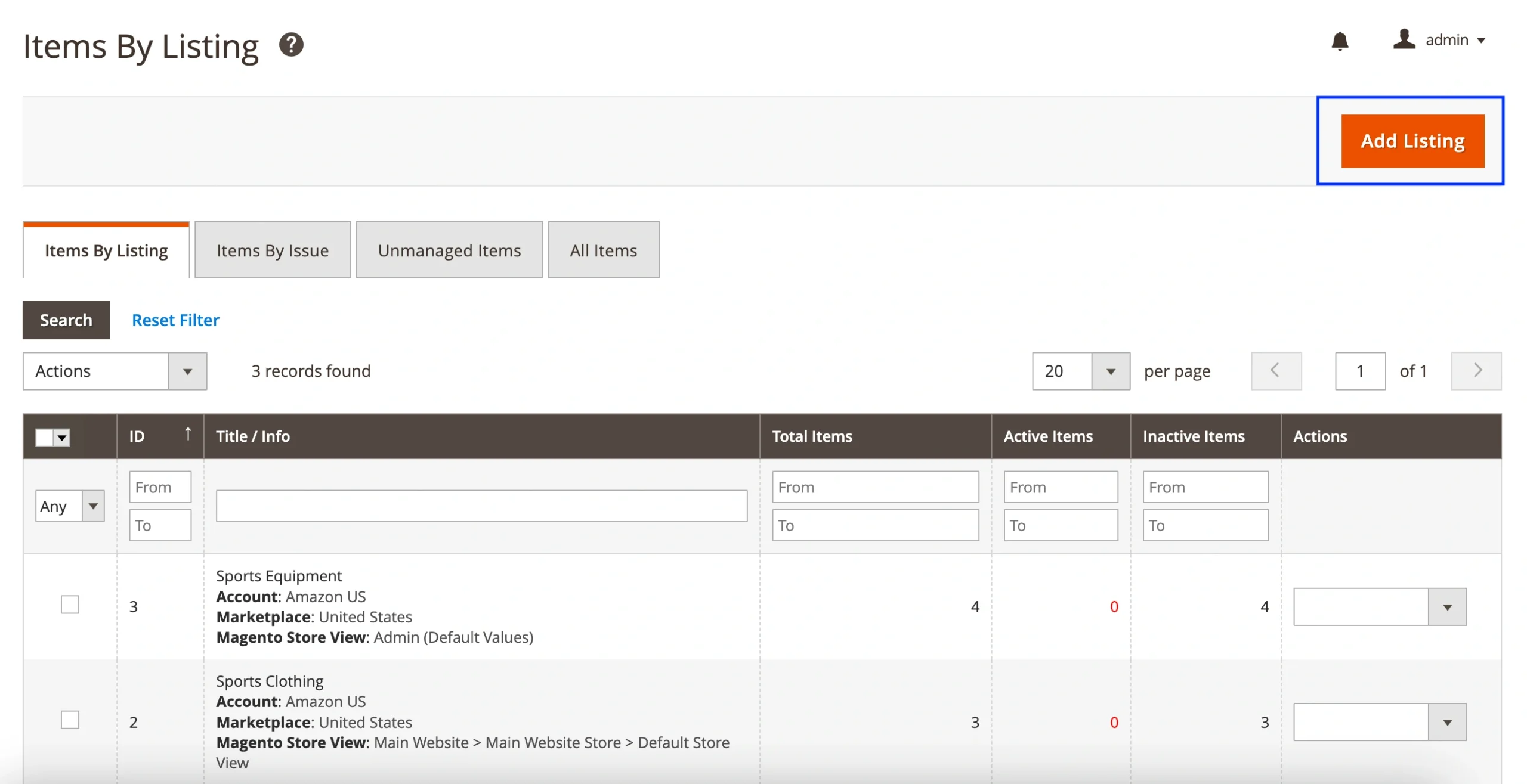
Navigate to Amazon > Listings > Items and click Add Listing to begin. Follow the on-screen instructions for a step-by-step walkthrough.
You’ll also need to configure Product Identifier settings under Amazon > Configuration > Settings > General. These settings apply globally across all listings. However, if you need to assign specific Product ID values for a particular listing, you can adjust them during the selling settings step.
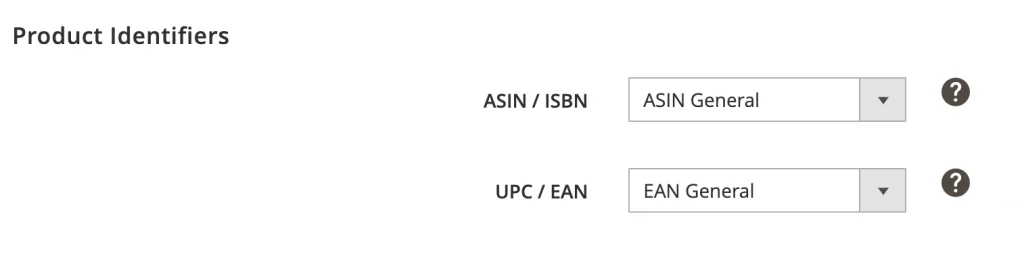
Amazon relies on these Product IDs (such as ASIN, ISBN, UPC, or EAN) to:
- Match your item with an existing listing in the Amazon catalog.
- Create a new ASIN/ISBN if no matching product is found.
Step 3. Add variational products to M2E Pro Listing
Once you’ve set up general and selling settings for your Listing, it’s time to select the variational products from your Adobe Commerce catalog that you want to list on Amazon. You can add items to your Listing by choosing from the Adobe Commerce product list or filtering through the category tree — whichever method fits your needs.
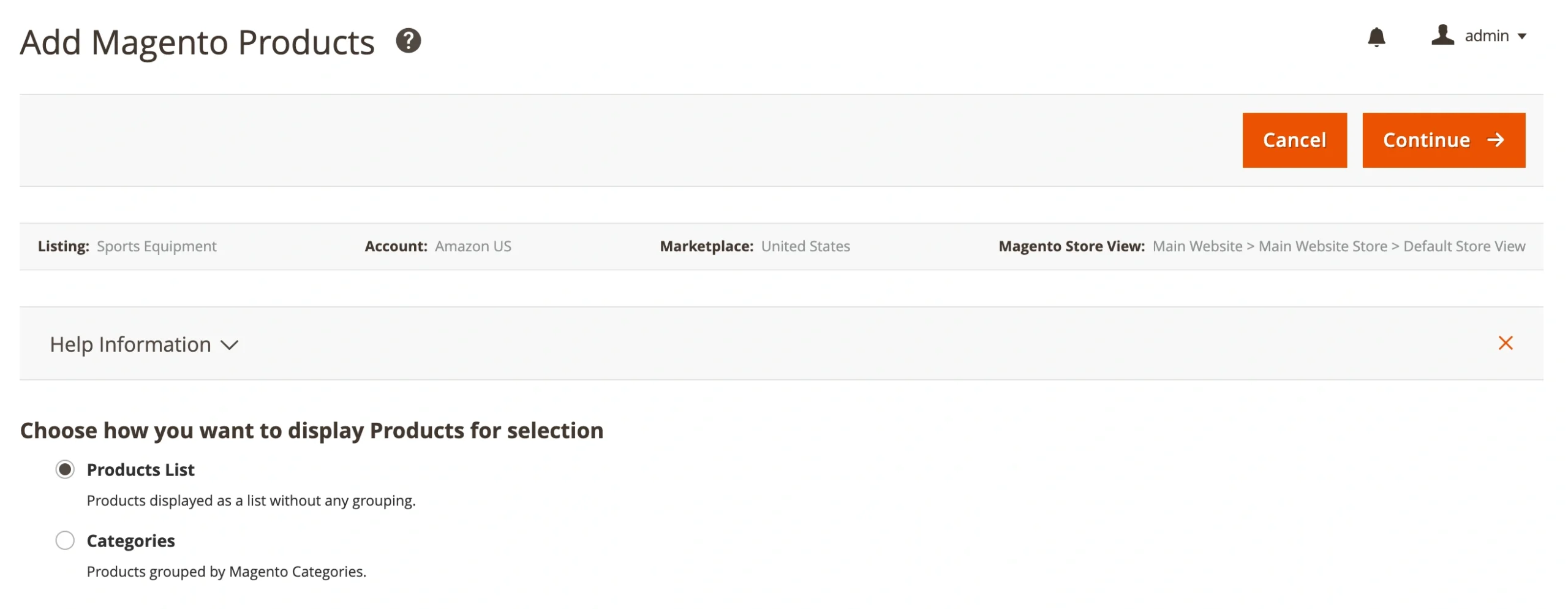
To find the right products for your listing, use filters based on Adobe Commerce product type, title, product ID, or other parameters. You will need to select the Parent (Container) Product, which contains the variations in your Adobe Commerce catalog.

M2E Pro is compatible with all Adobe Commerce product types, such as Configurable, Grouped, Bundle, and Simple with Custom Options. For Amazon variation listings, Configurable Products are the recommended choice, as they allow each variation to be treated as a separate item while staying linked under one parent ASIN.
Keep in mind that Amazon restricts Variational Products to 2,000 Child ASINs per product page. Exceeding this limit may lead to listing errors.
Step 4. List the variational products on Amazon (under existing ASIN/ISBN)
Once you have selected your variational products, M2E Pro automatically performs an ASIN/ISBN search based on the Product Identifier settings you’ve specified when creating your M2E Pro Listing. Since most products already exist in Amazon’s catalog, M2E Pro searches for a match and links your Adobe Commerce products to existing Amazon listings.
The search algorithm follows this sequence:
- ASIN/ISBN
- UPC/EAN
M2E Pro compares your product details with those in the Amazon catalog and switches to the next identifier if no match is found or if the parameters are missing.
Assigning ASINs Manually
If M2E Pro does not find a matching ASIN, or if the product ID is missing or invalid, you can manually assign the correct ASIN:
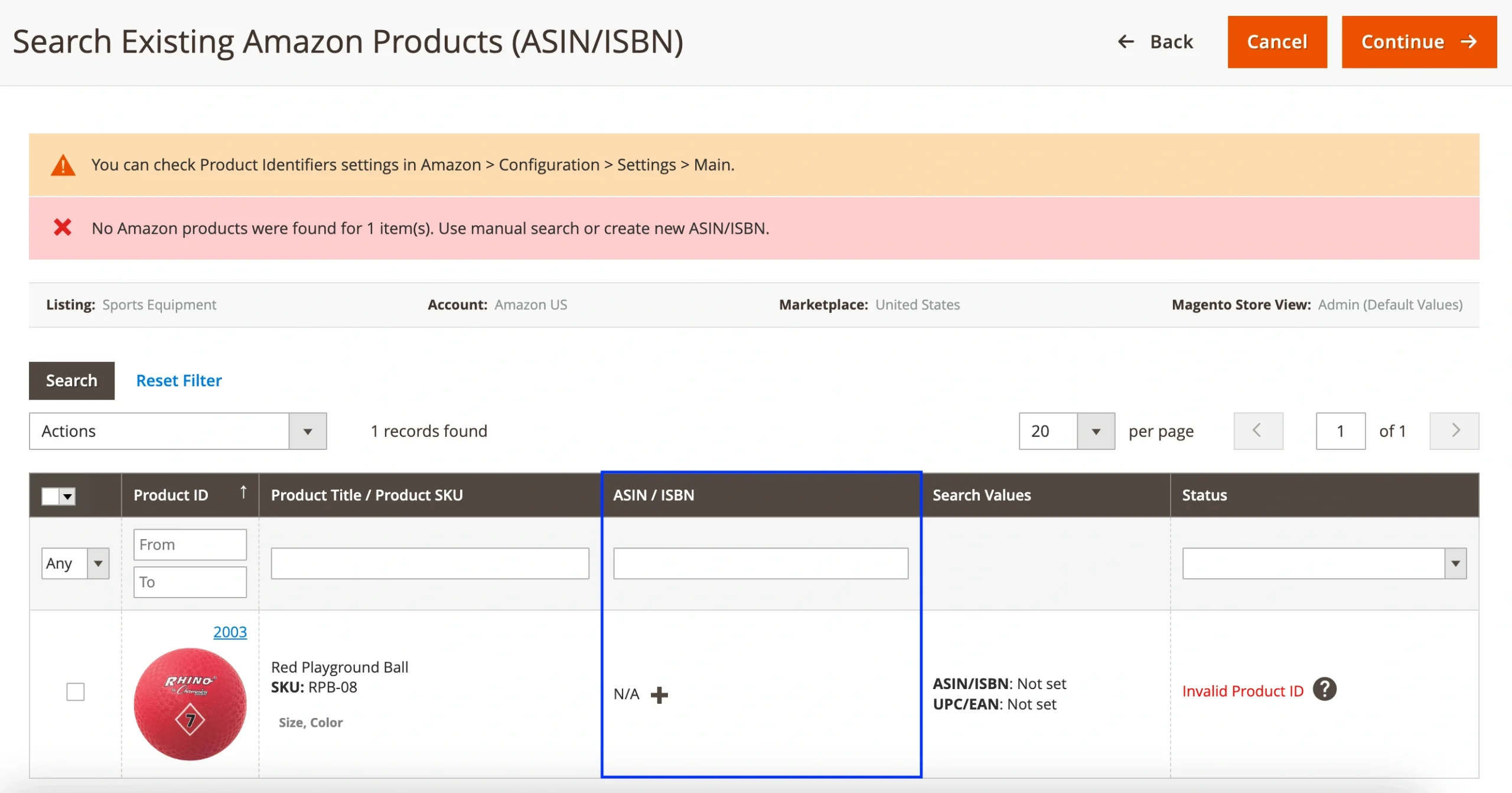
- Click the plus button in the ASIN/ISBN column.
- Enter the ASIN, ISBN, UPC, or EAN in the pop-up window.
- Find the ASIN/ISBN of the Parent Product (not the Child one). Also, mind that Amazon only allows assigning the ASIN of a Variational product, not a Simple one.
Matching Variation Attributes
Before finalizing the listing, verify that Magento and Amazon variation attributes align. If attributes match exactly, M2E Pro links them automatically. If needed, you can edit the matched attributes manually.
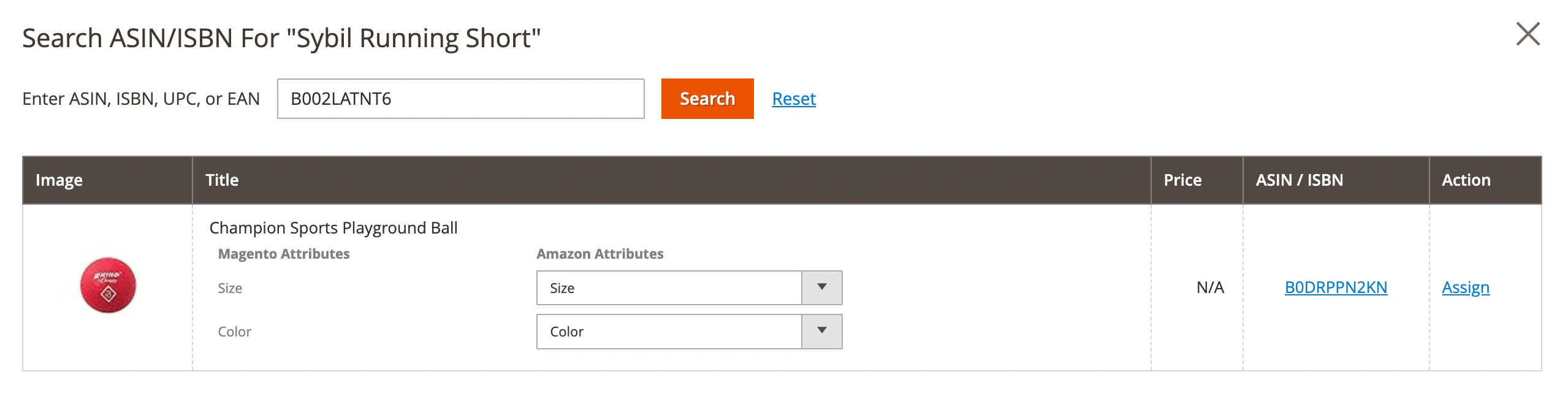
You must also ensure that Magento and Amazon products have the same number of attribute values. If there is a mismatch, you can create a virtual attribute in M2E Pro to align them.
Once done, click Assign to link the ASINs.
Submitting the listing to Amazon
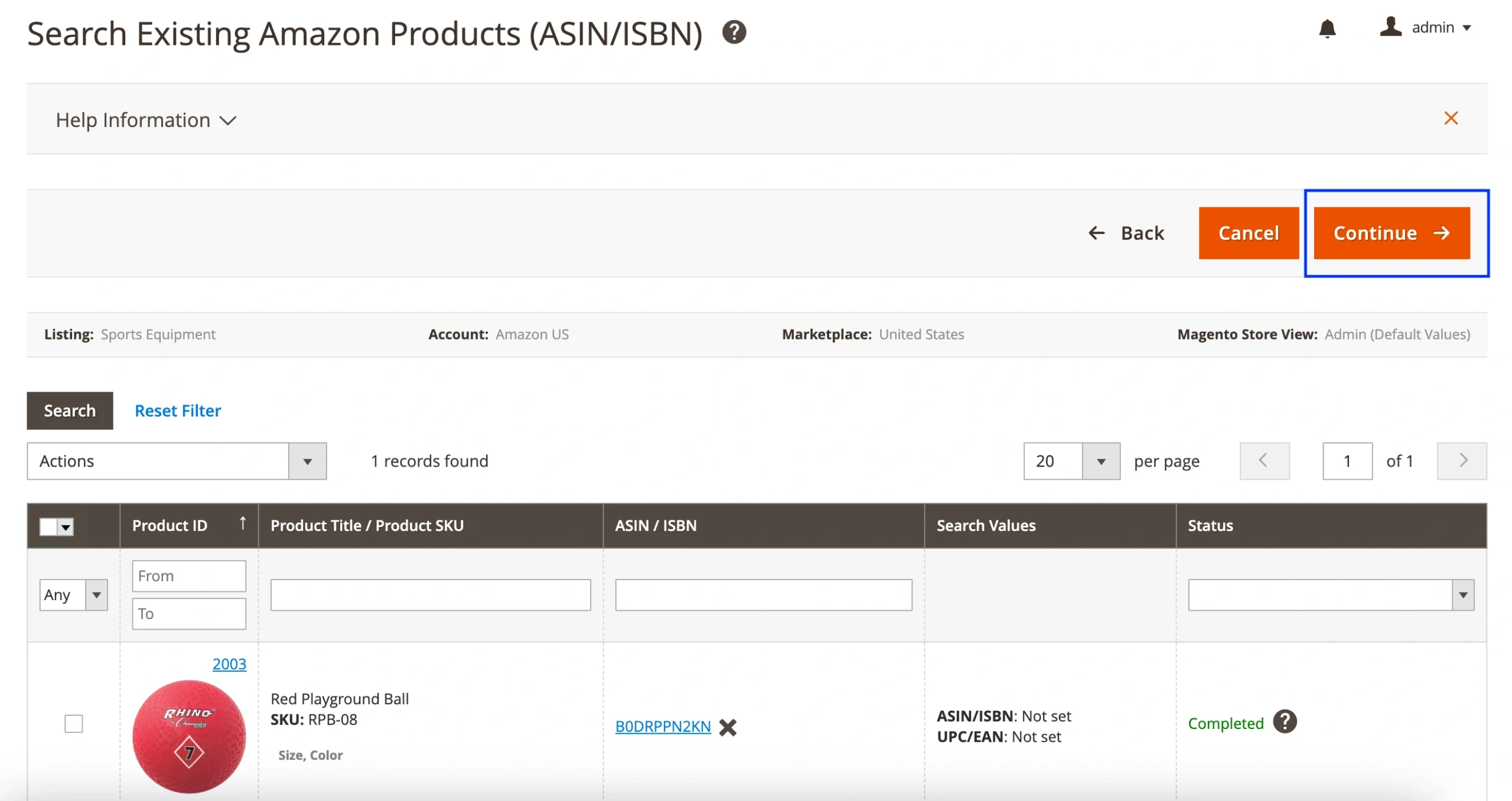
After assigning ASINs to all selected products, click Continue.
If you are ready to list, click List Added Products Now, and M2E Pro will submit the listing for Amazon’s approval. Alternatively, if you prefer to list your products later, select Go to the Listing and proceed at a more convenient time.
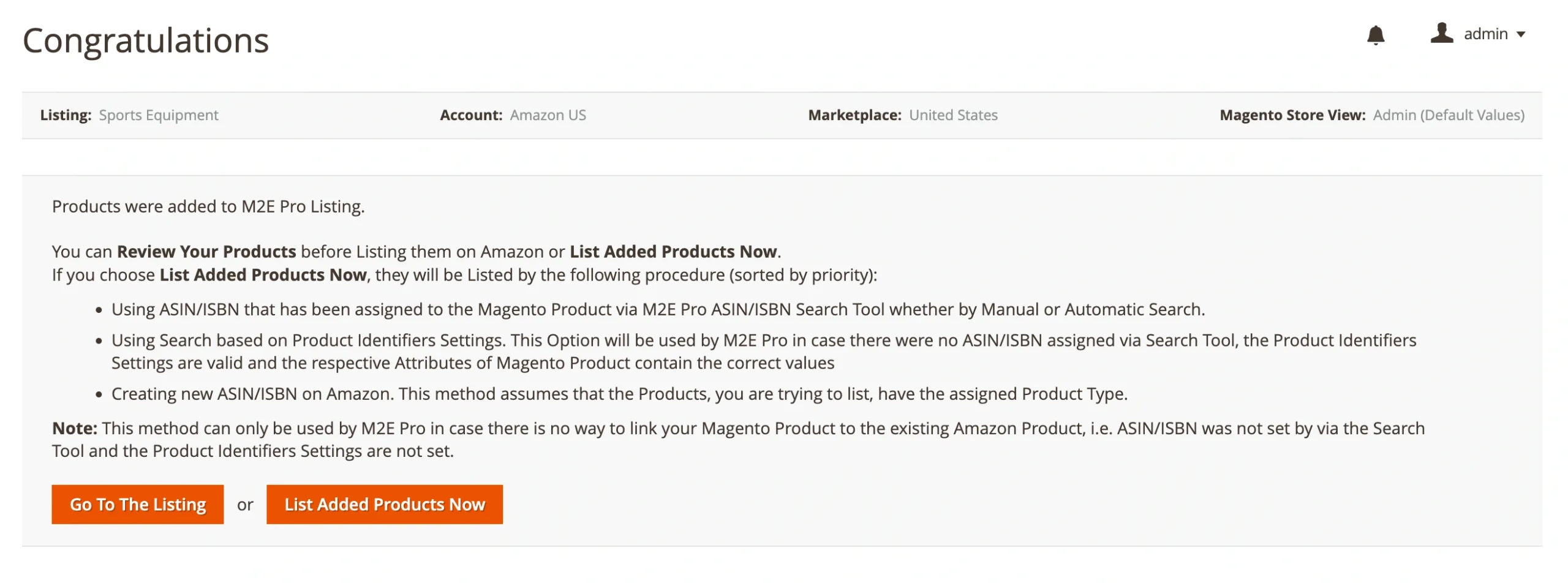
Once Amazon verifies the listing, your variational products will go live, and M2E Pro will begin syncing inventory and order updates in real time.
Each variation must be linked to the corresponding Amazon item when listing an Adobe Commerce variational product under an existing ASIN/ISBN.
Step 5. Manage variations on Amazon
After your products are live on Amazon, you can manage the variations within M2E Pro.On the M2E Pro Listing page, click Manage Variations next to the product. A pop-up window will display all Child Products and their details. From here, you can view and manage Child Products, list, revise, relist, or stop individual variations on Amazon.

If you need to, you can also adjust variation attributes under the “Settings” tab.

Listing variational products on Amazon under new ASIN/ISBN
If your product does not yet exist in the Amazon catalog, you can create a new ASIN/ISBN in M2E Pro. Follow these steps for a smooth and error-free process:
1) Verify that your product meets Amazon’s requirements
Before creating a new ASIN, check whether your product belongs to a category that allows variations. Not all categories support variation listings, and some only allow specific attributes to vary.
For example, the Apparel category may allow size and color variations but not material type. If you sell a T-shirt available in cotton and polyester, you would need to create separate listings for each material while still using variations for different sizes and colors.
2) Configure UPC/EAN in M2E Pro
In the Product Identifier settings, set a UPC/EAN attribute to ensure your product can be listed on Amazon.
If your product does not require UPC/EAN (e.g., handmade or private-label products), make sure you have Amazon’s approval to list products without these identifiers.
3) Link Product Type and Magento Attributes
To streamline the listing process and reduce manual configuration, it’s important to link your Product Type with Magento attributes. By mapping attributes in advance, you ensure that the correct data is automatically applied when creating listings.
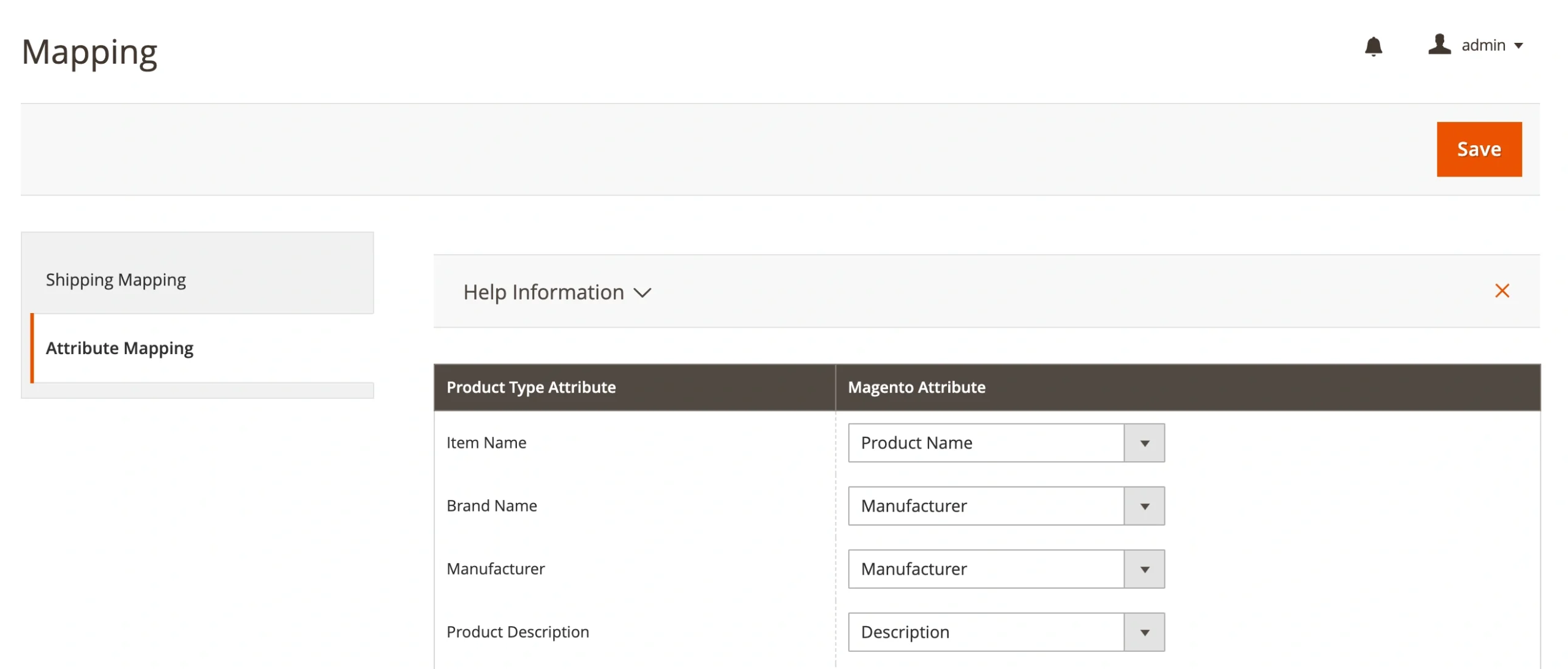
How to set up Attribute Mapping:
- Navigate to Amazon > Configuration > Mapping > Attribute Mapping.
- Configure attribute mappings by selecting the appropriate Magento attributes for Amazon’s required fields.
- Save the mappings as default settings to ensure they are automatically applied to future listings.
4) Assign a Product Type to your variational product
After selecting the products to be listed (Step 3), you may see a message indicating that no matching ASIN/ISBN was found for your products. Click Continue, and in the pop-up, confirm that you want to create new Amazon products for the Magento products that do not have an assigned ASIN/ISBN.

To create a new ASIN, you must define a Product Type in M2E Pro and assign it to the Magento Parent Product. This Product Type will automatically apply to all related Child products.
You can use a single Product Type for all selected products, automatically assign it according to the Magento product categories, or assign Product Types to each item (or a group of items) individually.
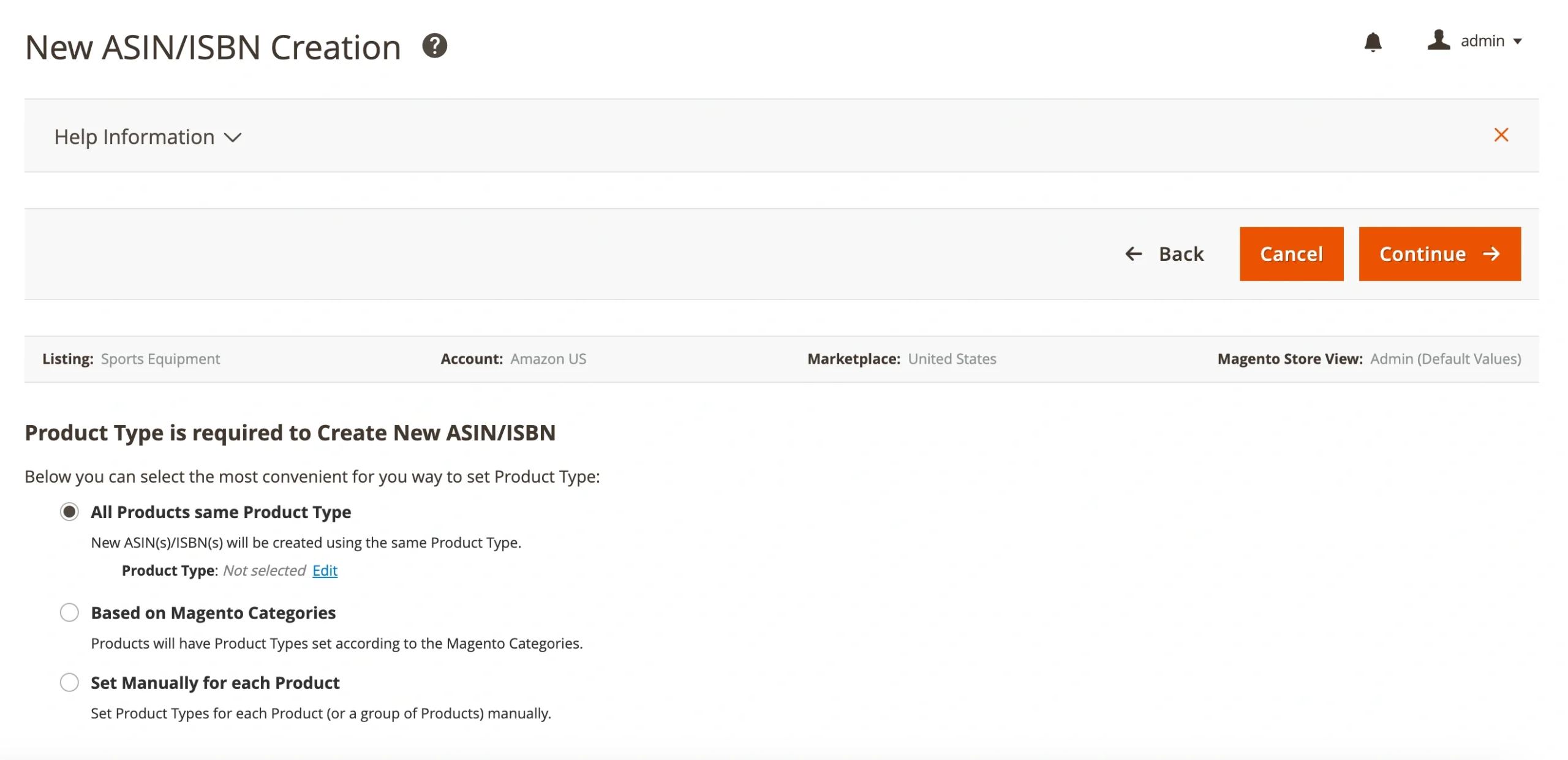
If necessary, add a new Product Type by selecting the appropriate Amazon Marketplace and defining Product Specifics using Magento Attributes or entering them manually.

Once complete, click Assign next to the relevant Product Type and then click Continue to proceed.
5) Submit a listing to Amazon
Before submitting your listing, M2E Pro performs data validation to ensure that all required information is accurate and complete. This process only takes a few moments and will notify you if any Magento attributes need adjustments to meet Amazon’s listing requirements.
If validation flags any issues, you can go back and edit the necessary details to improve your chances of Amazon approval on the first submission.
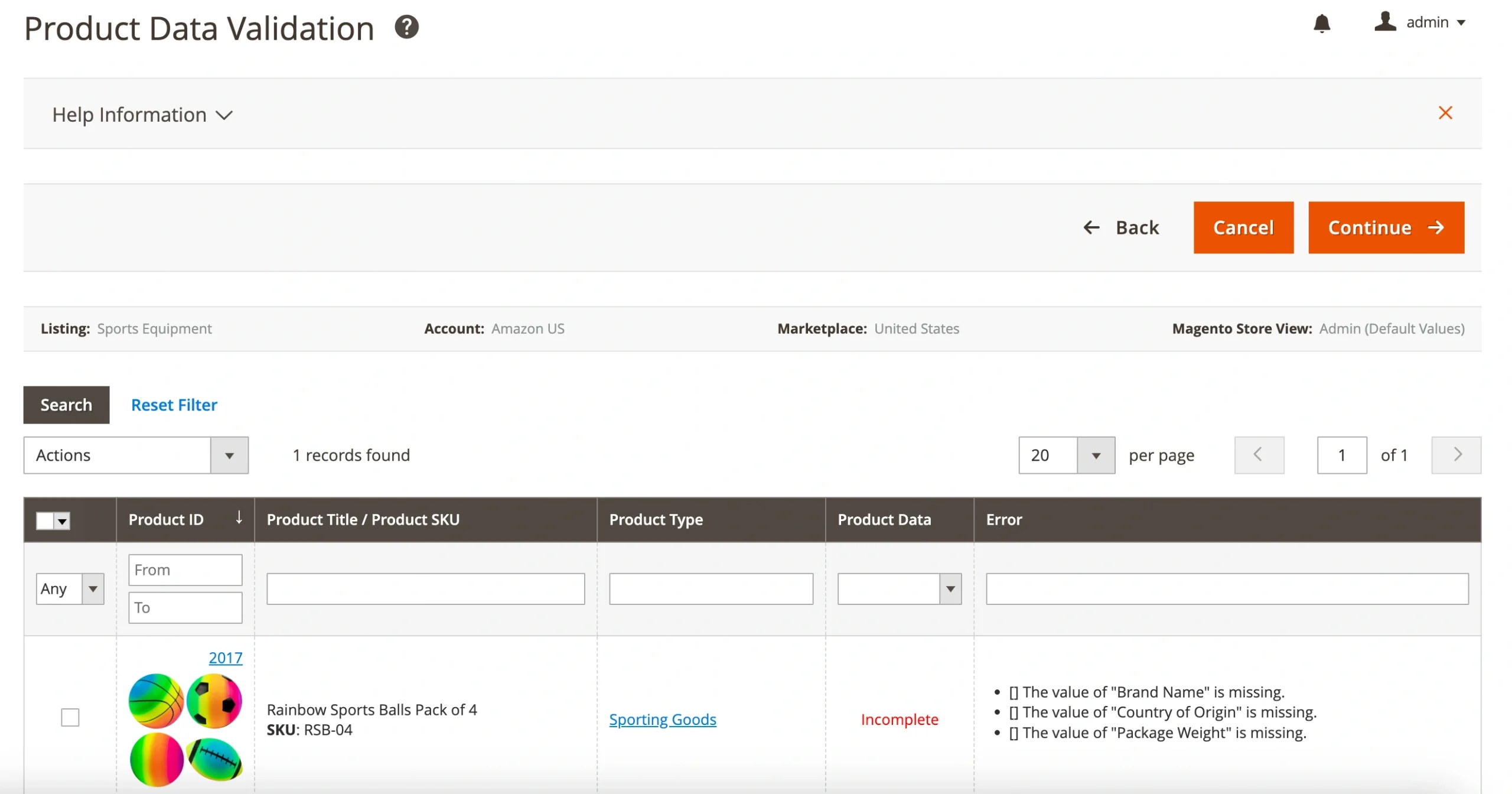
Once you are ready to list, click List Added Products Now, and M2E Pro will submit your listing for Amazon’s approval.
If you prefer to list later, select Go to the Listing and proceed at a more convenient time.
Important Considerations
Amazon requires that the Variation Theme of your selected Product Type matches the attributes of your Magento Variational Product. Before listing your product, click Manage Variations next to it in M2E Pro Listing.
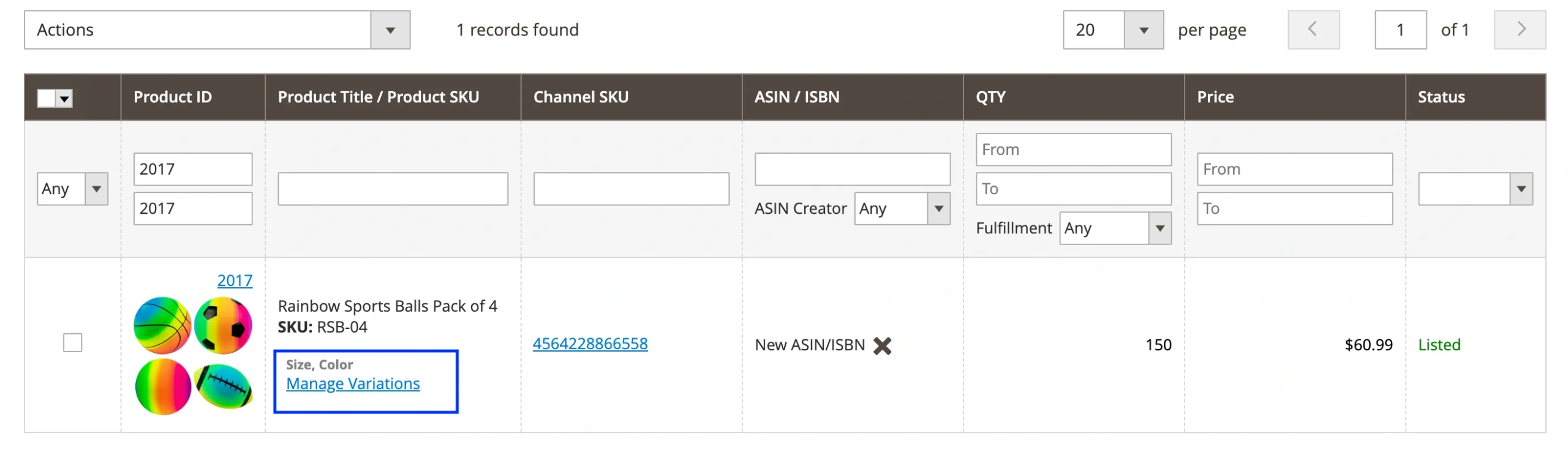
Switch to the Settings tab and check that the Variation Theme and Variation Attributes are properly mapped to avoid listing errors.

Even if your product meets all requirements, Amazon will first check whether an existing ASIN already matches your product based on its UPC/EAN.
- If Amazon finds a matching ASIN, M2E Pro will link your Magento product to the existing ASIN instead of creating a new one.
- If no ASIN is found, Amazon will allow the creation of a new ASIN/ISBN for your product.
To avoid unnecessary errors, ensure that your product is truly unique and does not already exist in the Amazon catalog before proceeding with the new ASIN/ISBN listing.
Create and manage product variations on all Amazon marketplaces directly from your Adobe Commerce admin with M2E Pro. Start your free 30-day trial today and experience real-time inventory and order synchronization across Amazon and beyond!

Conclusion
Mastering variational listings on Amazon can give your business a real edge, helping you attract more buyers, simplify inventory management, and boost conversions. With M2E Pro, listing and managing product variations is seamless, allowing you to focus on growing your sales.
If you have any questions, our knowledge base, user guides, and expert support team are here to help. Start optimizing your listings today and make the most of your Amazon selling journey!